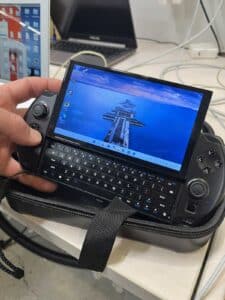
What is GPD Win 4 2023?
The GPD Win 4 is a handheld gaming PC made by GPD (GamePad Digital), designed to run full Windows like a mini laptop—but in the form factor of a PlayStation-style handheld.
This particular unit has 64GB RAM and 4T SSD!! It’s a beast…when it runs but now, it is not booting.
Customer Reported Issues: Device went through windows update. Then did subsequent reboot, now hasn’t booted since. Sometimes will boot into BIOS.
Customer has removed SSD and formatted but the issue remains.
Prior to the failure, the WiFi would drop out under load and the device would routinely overheat.
Observed Issues: Unable to boot properly.
Troubleshooting/Remedy steps: Upon examining the device, we noticed that the fan is running at high speed and it cannot boot up properly. After opening it up, we found no signs of liquid damage inside. A thorough check of the hardware revealed no burnt or damaged components. However, we discovered that the device does not have an operating system installed. Therefore, we need to reinstall the operating system. After reinstall of the OS there was still an issue booting. The issue is with the BIOS and will need to be reprogrammed.
At first, all things pointed to a hardware fault so we spent some time to open the device up and inspect it with our thermal camera. Impressively compact Windows machine indeed.
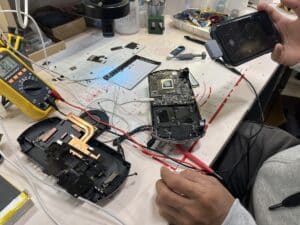
Thermal camera confirmed nothing was shorted even thou it seemed like it from the symptoms.
To make things more interesting, the software update did make the unit boot and show image on the screen but the touch seemed not to work. After some more diagnostic, it became apparent that the touch works but it needs calibration.
How do you perform calibration on this device? It is not so obvious as Windows 11 hides the calibration tool, and the GPD Win 4 uses an N-Trig/Goodix touch digitizer that often becomes misaligned after driver updates, screen resolution scaling changes, or BIOS resets.
This is how we got to it: In command prompt type tabcal, the calibration tool will launch. Allow it to make system changes and follow the calibration steps.
If you don’t have the magnifying glass, it might be very difficult to read instructions. It says to double tap the cross on the display. The cross should move when you tap it.
Unfortunately for us, this did not happen so easily. The calibration tool does not react to touch as it’s missing it’s input source which can be reset in the tablet PC settings by clicking the reset button. Unfortunately again, the reset button is missing as Windows is not recognizing display as a touchscreen in the “Tablet Input Service” pathway…
Windows hides the Reset and Calibrate for touch options when:
-
The touch driver is misidentified
-
The digitizer is being detected as a “Pen only” device
-
Wrong HID/I2C driver was loaded
-
Tablet PC optional components are disabled
-
Touch firmware is corrupted
-
Windows thinks your screen is “clone mode” or not primary
I’ll put an update once we come to the bottom of it.